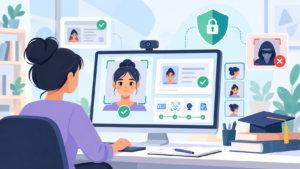
A Canvas quiz is ready. The questions are uploaded, the exam window is scheduled, and students have received their instructions.
But is the examination environment actually secure?
A correct quiz setup does not always mean an exam is protected against unauthorized access, exposed answers, or outside assistance.
For universities using Canvas LMS, exam security involves more than selecting a time limit or publishing a test. Administrators must also review access permissions, question settings, learning tool integrations, candidate authentication, and student support procedures.
Even one overlooked setting can create problems during an important assessment.
This Canvas LMS exam security checklist covers 12 areas that administrators and examination teams should review before online tests begin.
The goal is simple: help institutions deliver exams that are secure, reliable, accessible, and fair.
Why Canvas LMS Exam Security Requires More Than Quiz Settings
Canvas LMS provides built-in tools for creating, scheduling, delivering, and grading online assessments.
Administrators and instructors can configure time limits, attempt restrictions, access codes, question presentation, and result visibility.
These features help manage how students access and complete examinations.
However, Canvas is primarily a learning management system, not a complete remote proctoring solution.
Its standard quiz settings do not independently verify that the registered student is physically taking the exam. They also do not provide comprehensive control over unauthorized applications or devices outside the Canvas environment.
For higher-stakes assessments, institutions may need additional security tools and clearly defined examination policies.
Before choosing those tools, administrators should understand what Canvas already provides and where additional safeguards may be necessary.
12-Point Canvas LMS Exam Security Checklist
1. Confirm Whether the Exam Uses Classic Quizzes or New Quizzes
What to review: Quiz engine, supported settings, and security tool compatibility.
Canvas supports Classic Quizzes and New Quizzes, but their features and configuration workflows differ.
For example, New Quizzes supports global question shuffling, multiple-session detection, and course-level time accommodations. Classic Quizzes uses different approaches for several of these functions.
This distinction matters when administrators apply standard examination policies across departments.
Canvas also introduced an important New Quizzes integration change in 2026, moving the quiz experience out of its previous iframe presentation and into the main Canvas page.
External tools, including proctoring and accessibility software, should be tested against the current New Quizzes experience.
According to Instructure’s New Quizzes Native Integration guidance, compatibility testing was an important part of this transition.
Administrator checklist:
- Confirm whether the exam uses Classic or New Quizzes.
- Identify settings that behave differently between the two.
- Verify compatibility with installed proctoring tools.
- Check whether course copies preserve the required settings.
- Test the complete examination workflow before deployment.
Important: Do not assume that a security integration working with Classic Quizzes will automatically behave identically in New Quizzes.
2. Review Canvas Account Access and User Permissions
What to review: Authentication, administrative privileges, and candidate access.
Canvas security begins before the examination opens.
Universities should confirm that students access examinations through approved institutional accounts.
Canvas supports single sign-on (SSO) through external identity providers, allowing institutions to manage authentication through existing systems.
However, logging in with valid credentials does not automatically prove who is physically taking the examination.
Administrators should also review account permissions.
Not every faculty member, teaching assistant, or support employee needs permission to change examination content, modify grades, or alter course settings.
Excessive access increases the chance of accidental changes or unauthorized activity.
Administrator checklist:
- Confirm approved institutional login and SSO settings.
- Review administrative and course-level permissions.
- Check whether staff access is limited to required responsibilities.
- Verify student enrollment and examination eligibility.
- Confirm appropriate multi-factor authentication protections for privileged accounts.
Best practice: Separate the permission to create examinations from the authority to change institutional security configurations wherever appropriate.
3. Configure Examination Availability, Time Limits, and Attempts
What to review: Exam scheduling and access restrictions.
Canvas allows instructors to configure when students can access a quiz and how long they have to complete it.
Three settings deserve particular attention:
- Available From: When students can begin accessing the assessment.
- Due: When submissions become late.
- Until: When the assessment closes.
These settings serve different purposes.
An exam may have a 90-minute time limit but an availability window that closes earlier than a student’s permitted completion time.
In Canvas, an in-progress quiz can be automatically submitted when its Until date and time passes.
This can create problems for students who start later or have approved extra-time accommodations.
Administrator checklist:
- Verify examination start and closing times.
- Check course and student time zones.
- Confirm the intended number of attempts.
- Review time limits for each assessment.
- Ensure accommodation windows allow the approved completion time.
- Test what happens when an exam reaches its closing time.
Common mistake: Assuming that granting extra time automatically extends the exam’s availability window.
Administrators should review both settings.
4. Check Question Banks, Randomization, and Navigation Controls
What to review: How examination content is presented.
Reusing identical questions in the same order can make it easier for students to share answers.
Canvas includes features that can help reduce predictable question presentation.
Depending on the quiz engine, instructors can use question banks, item banks, shuffled answers, and question-order controls.
New Quizzes supports global question shuffling. Classic Quizzes can use question groups to introduce variation.
Displaying one question at a time may also limit how much exam content appears on a student’s screen at once.
However, these controls have limitations.
Shuffling a small set of questions does not prevent content sharing. Restricting backtracking may also create unnecessary difficulty for some students.
Administrator checklist:
- Confirm whether question and answer shuffling is enabled where appropriate.
- Review item bank size and question quality.
- Consider displaying one question at a time.
- Evaluate whether backtracking restrictions are necessary.
- Check that question settings support approved accommodations.
Best practice: Combine technical settings with questions that test understanding, reasoning, and application rather than relying entirely on memorized answers.
5. Restrict Access to Correct Answers and Examination Feedback
What to review: Results visibility and question exposure.
One of the easiest security settings to overlook is when students can see correct answers.
If an examination remains open for several hours, a student who finishes early may receive feedback while others are still taking the assessment.
That information could be shared.
Canvas provides controls for restricting results, answers, and feedback, but the workflows differ between quiz engines.
In New Quizzes, administrators should review the quiz’s result visibility settings separately from the Gradebook’s grade posting policy.
Hiding grades in the Gradebook does not necessarily hide all New Quizzes results.
Administrator checklist:
- Confirm when students can view scores.
- Restrict correct answers until the intended release time.
- Review visibility of individual responses and feedback.
- Check Gradebook posting policies.
- Test result visibility from a student account.
Best practice: For high-stakes examinations, consider releasing detailed answers after all authorized examination windows have closed.
This protects question content while still allowing students to receive useful feedback later.
6. Review Quiz Access Codes and IP Restrictions
What to review: Additional controls on exam entry.
Canvas supports access codes and IP address restrictions for quizzes.
An access code requires students to enter an approved code before beginning the assessment.
An IP address restriction can limit access to designated network ranges, such as a campus testing center.
These controls can be useful, but they solve different problems.
An access code does not prove that the right candidate is taking the test. Similarly, an IP filter identifies a network connection rather than a person’s identity.
IP restrictions may also cause problems for legitimate remote students using home connections, mobile networks, or changing network addresses.
Administrator checklist:
- Confirm whether an exam requires an access code.
- Check who can access or distribute the code.
- Verify whether IP restrictions are appropriate.
- Test approved campus networks where IP restrictions are used.
- Define how authorized students regain access after connection problems.
Best practice: Use network-based restrictions only when they match the examination model. They are not a replacement for candidate authentication or proper supervision.
7. Evaluate Candidate Identity Verification
What to review: Confidence that the correct student takes the exam.
Canvas login credentials help control account access, but they do not always establish who is using an account.
For high-stakes online examinations, institutions should evaluate whether additional candidate verification is necessary.
Depending on university policy, this may involve approved ID checks, verification against institutional registration details, or supervised examination check-in.
Administrators should also define what happens when verification cannot be completed.
A failed or incomplete check should trigger an appropriate review process rather than an automatic accusation of misconduct.
Administrator checklist:
- Confirm whether additional identity verification is required.
- Review supported identification procedures.
- Ensure candidate information is connected to the correct examination.
- Establish alternatives for students who cannot complete the normal check.
- Document the process for handling disputed verification events.
Important: Candidate verification and secure browser controls address different risks. Universities should not assume that one replaces the other.
8. Review Secure Browser and Unauthorized Application Controls
What to review: Activities permitted outside the Canvas quiz.
Canvas quiz restrictions do not automatically prevent students from opening every unauthorized application on their computers.
A student might attempt to access search engines, communication tools, screen-sharing applications, or AI assistants during an examination.
For assessments that prohibit outside assistance, administrators should evaluate whether additional secure browser controls are necessary.
Depending on the provider, a secure testing environment may restrict access to other websites, unauthorized applications, screen capture, or certain desktop functions.
However, these technologies have different capabilities and limitations.
A solution that controls activities on the examination computer cannot guarantee that no unauthorized external device is being used.
Administrator checklist:
- Identify which resources students are allowed to access.
- Determine whether the examination requires a secure browser.
- Test restrictions against relevant unauthorized applications.
- Confirm that approved educational resources remain available.
- Check compatibility with accessibility tools and authorized devices.
Best practice: Ask providers to demonstrate exactly what their technology restricts instead of relying on broad claims such as “cheat-proof examinations.”
9. Understand Canvas Activity Logs and Their Limitations
What to review: Examination activity records and incident interpretation.
Canvas provides quiz activity information that can help administrators investigate technical problems.
For example, logs may show when a student accessed a question, submitted an answer, or stopped viewing the quiz page.
New Quizzes also offers a Detect Multiple Sessions setting that can record activity involving more than one browser or device session.
However, these records should not be treated as direct proof of cheating.
Instructure’s official Quiz Log guidance explicitly states that quiz logs are not intended to identify academic misconduct.
A student may appear to leave an exam because of a network interruption, browser refresh, or other technical event.
Similarly, a multiple-session event requires context before conclusions are drawn.
Administrator checklist:
- Understand which activity records are available.
- Verify permissions for viewing relevant logs.
- Review New Quizzes multiple-session settings where appropriate.
- Establish clear incident investigation procedures.
- Ensure academic integrity decisions involve authorized human review.
Best practice: Use Canvas logs to understand exam activity and troubleshoot issues, not as a standalone cheating detector.
10. Verify Accessibility and Examination Accommodations
What to review: Fair access for all approved candidates.
Security controls must not prevent authorized students from completing examinations.
Some students may require extra time, accessible navigation, assistive technologies, or alternative testing arrangements.
Canvas New Quizzes includes accommodation and moderation features for adjusting examination time.
However, a time accommodation can still be affected by the quiz’s availability dates.
Administrators must also check whether external proctoring tools work with the student’s approved assistive technology.
The Web Content Accessibility Guidelines (WCAG) 2.2 provide a useful reference for evaluating accessible digital experiences.
Administrator checklist:
- Review extra-time settings and individual accommodations.
- Confirm that availability windows support those accommodations.
- Test relevant assistive technologies.
- Ensure external security tools do not block approved resources.
- Establish alternative arrangements when necessary.
Best practice: Test accommodations as part of the complete examination workflow, not only inside the Canvas quiz settings.
11. Check Proctoring Integrations, Data Access, and Privacy
What to review: Third-party tools connected to Canvas.
Many universities extend Canvas with external examination security and proctoring platforms.
These integrations can simplify examination delivery, but they also introduce additional technical and data protection responsibilities.
Canvas supports external tools through Learning Tools Interoperability (LTI).
LTI 1.3 provides a standards-based approach to connecting learning systems and external tools. LTI Advantage adds services for functions such as role provisioning and grade exchange, depending on what each tool supports.
Universities should evaluate the precise integration offered instead of assuming that all tools support the same capabilities.
The 1EdTech LTI documentation provides useful background on these standards.
Administrator checklist:
- Confirm the external tool’s supported LTI version.
- Verify compatibility with Canvas New Quizzes.
- Review which student and course information is shared.
- Check installation permissions and authorized tool access.
- Test examination launch and any required grade or reporting workflow.
- Review privacy policies, data retention, and security documentation.
The EDUCAUSE HECVAT can help universities assess vendor cybersecurity, privacy, and accessibility risks.
Best practice: An integration should be considered ready only after its actual workflow has been tested and its data-handling responsibilities are understood.
12. Conduct a Full Pre-Exam Test and Prepare an Incident Response Plan
What to review: Operational readiness before students begin.
Even correctly configured Canvas settings can lead to examination problems when combined with unsupported devices, external software, or unclear instructions.
A full pre-exam test helps identify these problems before an important examination window.
Administrators should test the examination from the student’s perspective, including any external proctoring process.
The test should cover successful check-in, quiz launch, answer saving, submission, results visibility, and technical recovery.
Institutions should also decide who responds when something goes wrong.
Administrator checklist:
- Complete an end-to-end test using a properly enrolled test student.
- Confirm all required tools launch correctly.
- Verify that the examination can be submitted successfully.
- Test a permitted connection interruption and recovery process.
- Check the availability of student and faculty support.
- Assign responsibility for technical and academic integrity incidents.
- Confirm procedures for rescheduling or reopening affected examinations.
Best practice: Run a practice examination before high-stakes assessments. A successful instructor preview alone may not test access codes, IP restrictions, or external proctoring as students experience them.
Canvas LMS Exam Security: What Is Built In and What Needs Additional Tools?
Understanding the difference between native Canvas functions and external safeguards helps institutions avoid purchasing unnecessary technology or assuming they already have protections that are not present.
| Security area | Canvas LMS capabilities | Additional considerations |
|---|---|---|
| Student access | Institutional login and account permissions | Extra candidate identity checks may be needed |
| Quiz timing | Time limits, due dates, availability windows | Coordination with accommodations and proctoring |
| Question security | Shuffling, item banks, navigation settings | Assessment design and question exposure management |
| Results security | Score and feedback visibility controls | Institution-wide release procedures |
| Exam entry restrictions | Access codes and IP filters | These do not establish physical identity |
| Secure computer environment | Standard Canvas does not provide comprehensive device lockdown | External secure browser may be required |
| Remote supervision | Quiz activity records and moderation tools | External proctoring or live supervision may be needed |
| Incident investigations | Quiz logs and submission information | Human review and institutional policies remain essential |
| Accessibility | Canvas accommodation and accessibility features | Test the complete external-tool workflow |
The key lesson is that a secure Canvas exam is created through the combined examination workflow, not one setting or one product.
How Proctortrack Supports Canvas LMS Exam Security
Proctortrack supports Canvas-based examination workflows through its published LMS integration and online proctoring capabilities.
Its Canvas offering includes options for secure testing environments, candidate verification, automated proctoring, live supervision, and examination review.
Proctortrack also provides integration options for Canvas through LTI and other supported approaches, allowing institutions to evaluate how examination security fits their existing course and assessment processes.
For administrators, the practical value of an integrated approach is the ability to manage examination security without treating the LMS and proctoring system as completely separate workflows.
However, institutions should verify their specific integration configuration, supported Canvas quiz engine, student device requirements, and reporting capabilities before implementation.
External tools should be tested against the current Canvas New Quizzes experience, including its 2026 architectural changes.
A university’s security model should match its examination needs rather than applying the same level of monitoring to every assessment.
Final Thoughts: Secure Canvas Exams Start Before Students Click Begin
Canvas LMS offers valuable tools for managing online examinations, but secure assessment delivery requires careful preparation.
Administrators should review quiz settings, user permissions, question visibility, identity requirements, external integrations, accessibility, and incident procedures before every important examination.
The strongest approach combines reliable LMS configuration with appropriate examination security and institutional oversight.
Online exam security is not something administrators should verify after an incident. It should be built into the examination setup process from the beginning.
Explore Proctortrack’s Canvas LMS integration to learn how external examination security and proctoring options can complement Canvas-based assessments.